


Username
Password
Remember Me
Log in
Forgot your password?
Forgot your username?
Forgot your username?
SmartFormer Gold (v1.7.0) for Joomla
Compatibility:


SFG plugins may also be interested in
SmartFormer Gold is an advanced form manager for Joomla 1.5.x - 3.x websites. Easy to use but yet powerful and secure it will allow you creating forms of any complexity, from simple Contact Us form to Surveys with graphs and records loaded from the database. Using the visual drag-n-drop interface you can create a responsive form literally in minutes. Simply drag ready HTML elements (input boxes, checkboxes, dropdowns, etc) on the form and save. Additional tools like Email Templates Manager, Database Designer or integrated PHP/JS/CSS editors will help advanced users to create interactive multi-page forms with AJAX or 3rd-party JS/PHP widgets. The extension is open source and released under the GNU GPL license since version 1.7. Features
Screenshots: 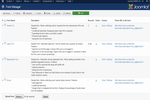 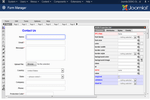 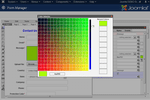 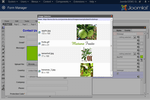 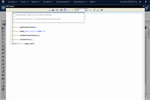 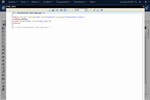 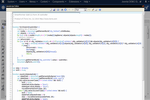 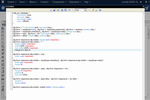 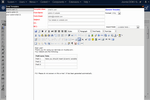 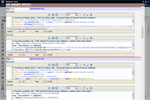 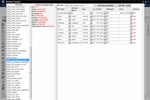 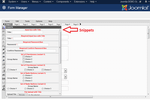 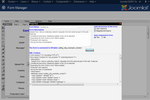 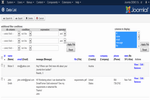 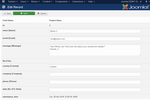 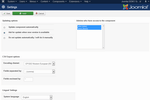 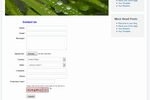 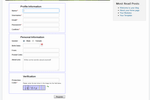  Videos: 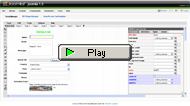 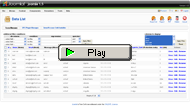 
Details Compatibility features Smart Former Gold is fully compatible with Joomla 1.5.x, 1.6.x, 1.7.x, 2.5.x, and Joomla 3.x. If you have used Smart Former before, and then decided to move about to Gold version, there is a special plug-in that transfers all your forms to Gold painlessly. Component features You will use the full WYSIWYG (what you see is what you get) for creating the forms. There are plenty of proposals who promise WYSIWYG, yet only out Joomla form builder has it. No arrows, no separate pages for each element - you have the area and you drag your elements there and drop them where you need it. You can easily move them with your mouse, there is the copy feature, bulk movement. Perhaps you will also need email notifications. When you create email templates - you will use the WYSIWYG in Joomla, so it will be very similar to creating the pages of your site. Usually Joomla extensions need re-installation, which takes time. Smart Former Gold has auto-update feature. You install it once, it checks for the updates available and installs the ones found. You can set to either update your Gold component manually, or use auto-update. The form builder also has the plug-in system embedded. Check the Plig-ins page and find out how the functionality can be expanded with them. Also if you want your Gold to be customized - it will not affect the main code, you will be able to update your form generator, as all customizations will go as plug-in. Form management You can clone your forms, which is very convenient if you need several similar forms. The cloned form will be fully independent. You can also back up the forms and upload them to another site. Database Management Smart Former Gold provides the advanced work with database. You can either create the new table for your form automatically, or manage it manually. Also there is the ability to write data from your forms to the existing tables of your DB. Form publishing You can insert a form into an article, into modules or bind them to a menu item directly. There can be several forms on one page. Your form can be accessed via the direct URL, so you can preview and check it before it is available for the front-end users.Validation There is the JavaScript validation embedded. There is also the PHP validation available in Gold. You have the ability to add new validation rules here. Record management After a form is submitted, administrators of the site can view the records. Sometimes these submissions need tome correction - it can also be done from the back-end. Gold provides the Record controller plug-in. With it your front-end users also receive the ability to edit their previously submitted form. You can manage the front-end access to your forms, so that the form is available once for one user only, or is available for a certain period, etc. Smart Former Gold also has a powerful filter for record in admin area. You can sort the submissions to display certain fields of the form to to see only the submissions corresponding to a certain rule. Export Perhaps you will need to export the submitted data. Smart Former provides two export options - to .csv file (later on you can open it with MS Excel) and to PDF file (with additional plug-in). You select either to export all submissions, or some of them, check the ones for export and press the button - and your submitted data is exported. Security Security is such a widely-met problem when dealing with forms. To avoid spamming, Smart Former provides three variants of Captcha code. You select one of them and add it to your form. You can also make your Captcha re-loadable with no reloading of the rest of the form (if users can not read a Captcha - they reload the image, while the rest of their submitted data is kept). There is another usual problem with Joomla. You create something large and suddenly the session is over, all your data is lost and you log in again to add it anew. Not in Smart Former - your session will be kept until you finish when you work in Smart Former. User session is also kept - so when your users submit large forms they will come back to the end of it from the first time. There is also front-end and back-end access control. You can limit the access to your forms, so that only the selected administrators can manage them. You can also limit the front-end access to certain groups of your users only. Email System We have mentioned already you will create email templates in WYSIWYG. It will be very similar to the way you add new articles to your Joomla site. Perhaps you will need to embed the data submitted by your users to the email sent to them and/or to administrators. It is very easy with Smart Former - on the top of your email editor there is a drop down with all fields your form contains. So for example you select the field called "First name" and add it to the email template. When your users receive the email, they will see their own names in it. You can create separate email templates so that your administrators and users receive different emails. Smart Former Gold provides the unlimited number of templates. Editor Features Your forms can contain the unlimited number of elements and unlimited number of pages. There is the list of HTML elements provided (for example input box, drop down, etc.). You can also copy-pase your element(s). Scripts can be associated with elements' properties expanding the functionality of your forms. Helpers When you need to make your form colorful or add images to it - no need to remember images' URLs or color codes. Smart Former provides beautiful visual color selector and image selector. You will see all thumbnails of images from your Media Manager and the folder structure will also be provided. Colors' samples are large, now you can select the color that you need easily. There are snippets - ready-made popular combinations of elements. You can add a snippet with one drag, thus populating your form with elements even faster. The snippets already have properties set, yet you can edit the properties if you need it. Smart Former Gold also has several convenient editing helpers. You can change the size of the grid when creating forms, so that aligning is fast and easy. To make it even easier there is the stick-effect created for you. When you add the following elements, they "stick" to the previous ones, drawing the temporary lines between elements. The elements of your form have the full list of MSDN properties, evens and attributes. The object finder is available in Smart Former Gold as well. Available HTML Elements Smart Former Gold provides all elements you will need to create your forms. They are:
Editors Integrated in Smart Former (for developers)
Change Log 1.6.0 (2016-04-11)
1.5.3 (2013-07-12)
v1.5.2
v1.5.1
|